1. Boot Computer with Linux Mint 15 Installation medio or ISO.
%20Installation%20Guide%20with%20Screenshots_files/lm-1.jpg)
2. Welcome screen, click on ‘Start Linux Mint’.
%20Installation%20Guide%20with%20Screenshots_files/lm-2.jpg)
Start Linux Mint 15
3. It’ll take you directly to Live Environment Desktop from where you will find out and test the Linux Mint. To install on Hard Drive, click on ‘Install Linux Mint’ from desktop CDicon.
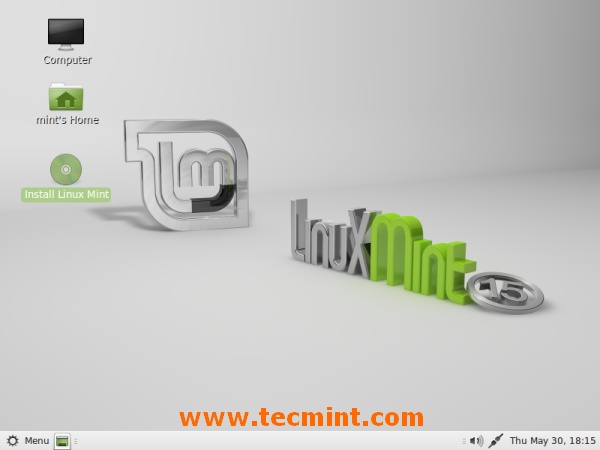
Install Linux Mint 15 to Hard Drive
4. Welcome, Select Language and click on ‘Continue’.
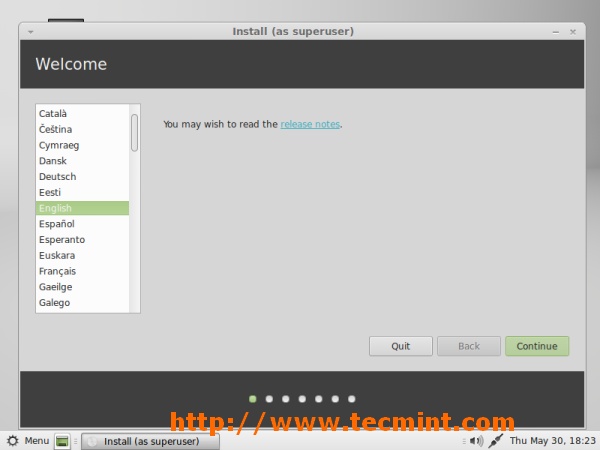
Linux Mint 15 Language Selection
5. Preparing to install Linux Mint, click on ‘Continue’.
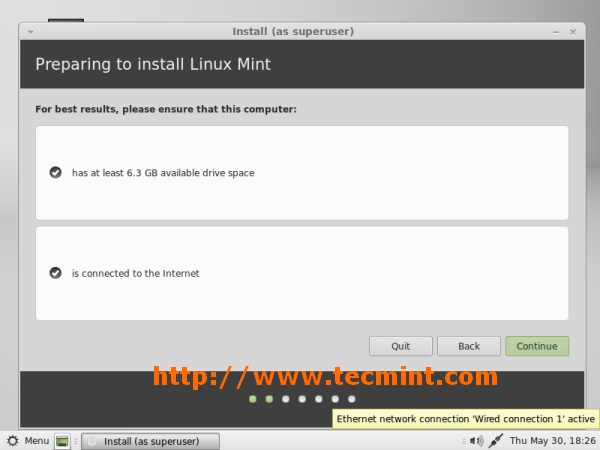
Preparing to install Linux Mint 15
6. Installation type, choose ‘Something Else’ if you want to customize partition by your own. Two options ‘Encrypt the new Linux Mint installation for
security’ and ‘Use LVM with the new Linux Mint installation’ included in Linux Mint Version 15. Choose appropriate options and click on ‘Install Now’.
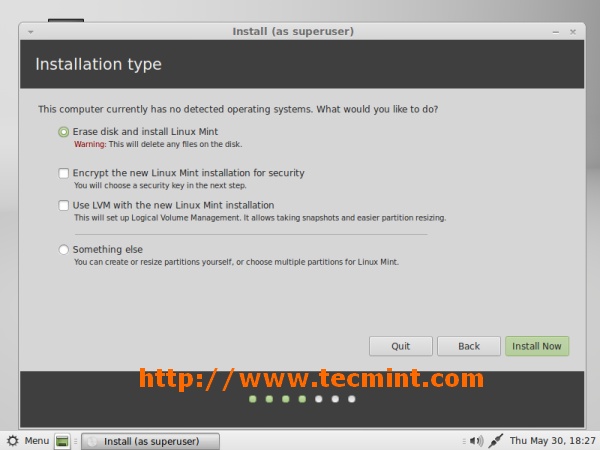
Select Linux Mint 15 Installation Type
7. Regional Settings, click on ‘Continue’.
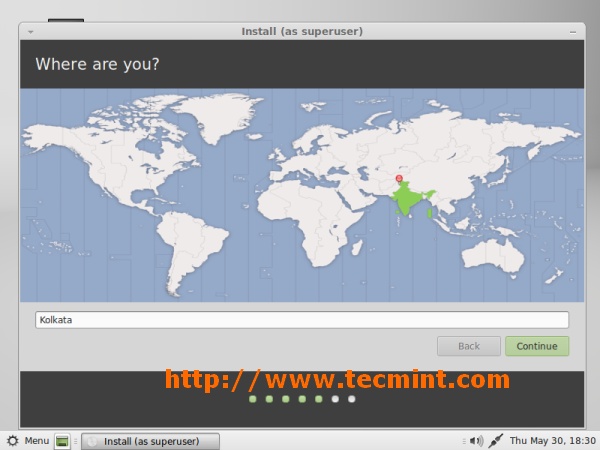
Regional Settings
8. Choose Keyboard layout, click on ‘Continue’.
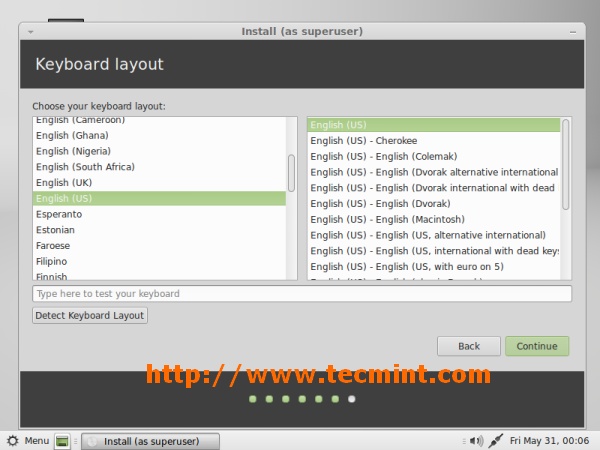
Keyboard Selection
9. Type user details like name, desired username and password to login post installation, click on ‘Continue’.
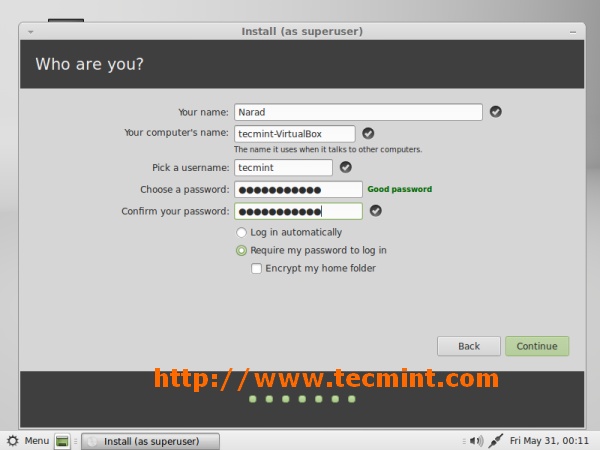
User Creation
10. Linux Mint is being installed, Files are getting copied and
installed on system. Relax and sit back… Have a sip of coffee as this may take
several minutes depending on system and internet speed.
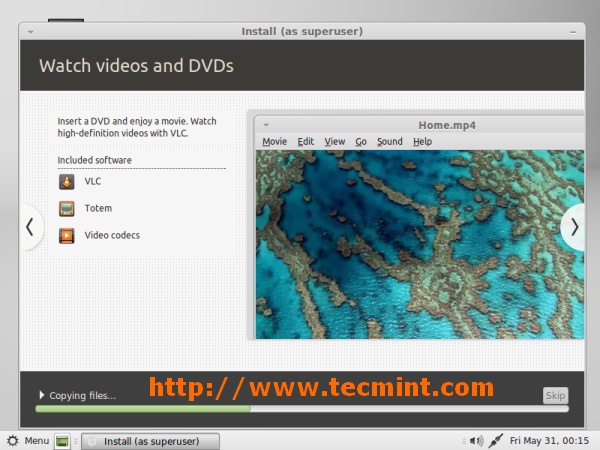
Installation Process
11. Linux Mint 15 installation completed. Eject boot media and
reboot system, click on‘Restart now’.
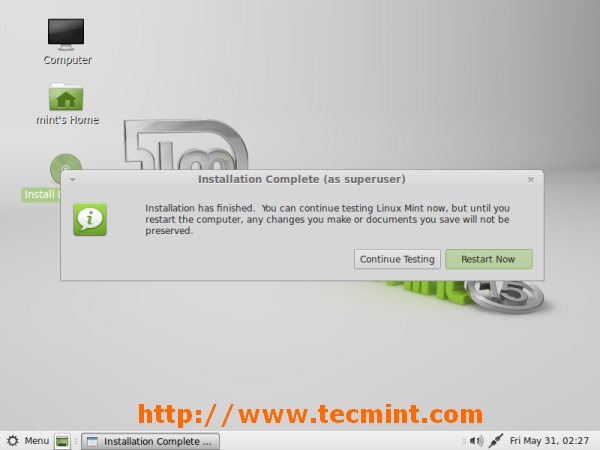
Installation Completed
12. A brand new HTML
greeter, login with username and password created during installation, click on ‘Ok’.
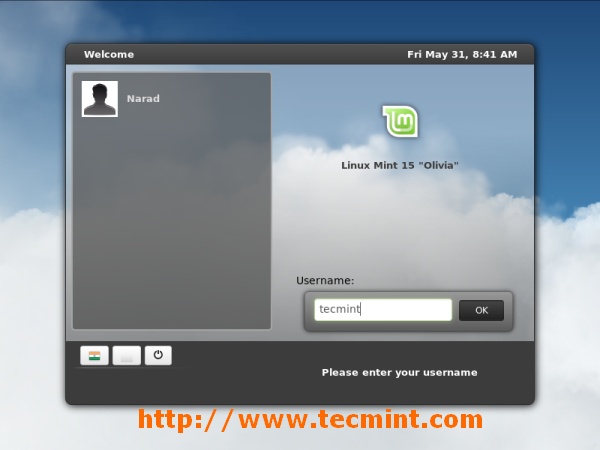
Login Screen
13. Linux Mint Software Sources screen.
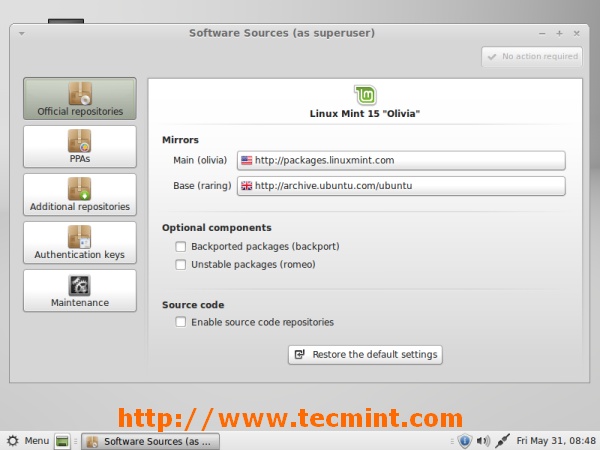
Software Sources
14. Linux Mint Software Manager screen.
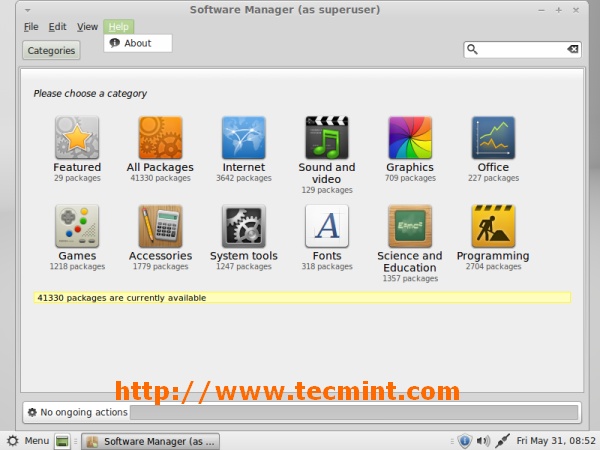
Software Manager
15. Linux Mint 15 base system is ready. This is end of the
installation.
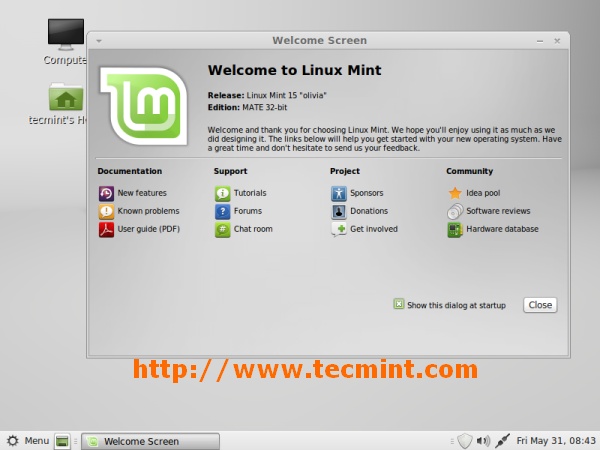
Linux Mint 15 Desktop Screen

No comments:
Post a Comment